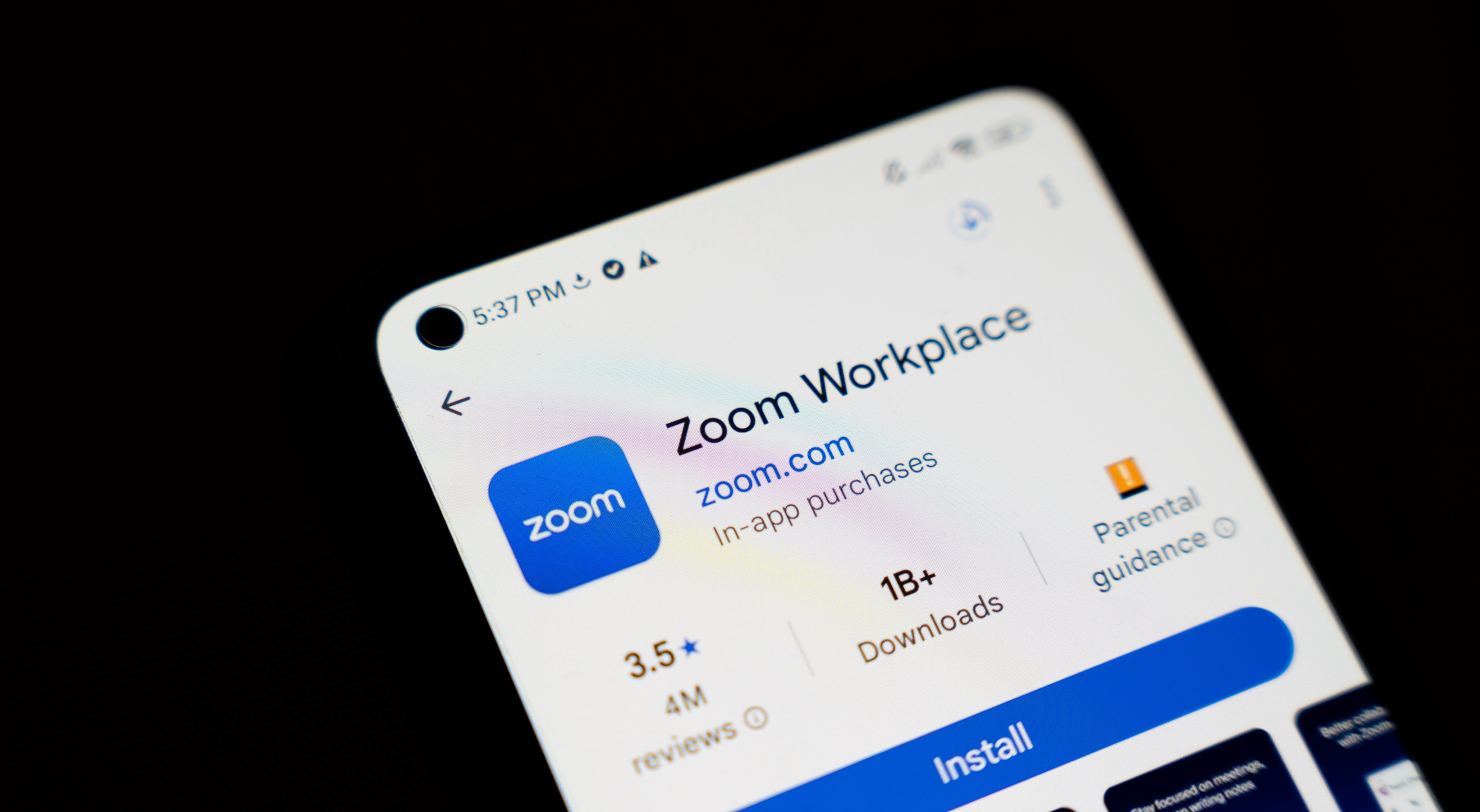
Zoom has become one of the most widely used tools for meetings, classes, and remote work. While it has some built-in and user-controlled protections, its popularity also makes it a target for attackers looking to gain unauthorized access to meetings, user credentials, or shared data.
For instance, a recent critical flaw in Zoom’s Windows client let unauthorized parties escalate privileges in outdated versions of the software. Another bug in its Android app allowed uninvited users to join meetings without proper authentication.
This guide will help you mitigate some common risks by breaking down:
- How the Zoom security setup works
- What privacy and security issues to watch out for
- How to strengthen your Zoom security ecosystem
Is Zoom Secure? What Its Privacy and Security Framework Says
Zoom is a video conferencing platform that lets people meet, collaborate, and share content over the internet. It’s generally considered secure as it uses a combination of encryption and user access controls to safeguard meetings.
By default, Zoom employs standard encryption protocols like TLS with AES-256 to scramble your media and data in transit, so third parties on the network can’t easily intercept them.
For more privacy-conscious users, Zoom also offers an optional end-to-end encryption (E2EE) mode that uses cryptographic keys stored exclusively on participants’ devices, so even Zoom can’t read the meeting content.
Besides encryption, the platform uses account-based controls and meeting permissions to limit who can join and what they can do inside a session.
Despite these protections, Zoom itself is a cloud-based SaaS, so its privacy model involves collecting and processing certain categories of user data. Here’s an overview:
Data Category | What Zoom May Collect |
Account and profile data | Name, email, display name |
Device and connection information | IP address, device type, general location |
Meeting data | IDs, schedule information, participant lists |
Shared content | Chat messages, files, transcriptions |
Per Zoom’s privacy policy, this data is used for service delivery, improvement, and product marketing. Zoom may occasionally share anonymized and aggregated user data with third parties.
Potential Zoom Security Issues To Watch Out For
Zoom is not designed as a security-first communication system. It’s built for functionality and quality of service, with privacy and security controls layered on top.
Zoom’s core design, combined with common user habits, can introduce five security issues:
- Unauthorized meeting access (Zoombombing): This happens when an uninvited person joins a session and disrupts the call or views content they shouldn’t. It’s usually linked to weak access controls, such as publicly shared meeting links or reused meeting IDs.
- Data breaches: Zoom logs detailed meeting information, including participant lists, email addresses, join/leave times, and IP addresses, that could be exposed in platform-wide data breaches. For instance, details of more than 500,000 Zoom users were found on dark-web forums in 2020, after hackers compromised accounts using techniques like credential stuffing.
- Software vulnerabilities: Outdated Zoom software may introduce vulnerabilities that allow attackers to steal your data and even take over your device. Zoom’s own security bulletin regularly announces newly discovered flaws alongside patches that users must apply to stay protected.
- Network-level risks on Zoom Phone calls: Zoom Phone and Zoom’s dial-in services use Voice over Internet Protocol (VoIP) for connection, including Wi-Fi or mobile data (3G, 4G/LTE, or 5G). These services often rely on standard protections and don’t enable E2EE by default, so your calls may be susceptible to eavesdropping, interception, or man-in-the-middle attacks.
- Third-party app risks: Malicious software, like the recently discovered Zoom Stealer browser extension, can discreetly collect meeting IDs, passwords, and participant data. Even legitimate marketplace apps or integrations can theoretically create access risks if granted broad permissions.
6 Zoom Security Features and Settings To Enhance Security
Zoom includes several built-in tools that help you counter the risks and vulnerabilities we covered. These six important Zoom security settings give you direct control over who can join, what participants can do, and how meeting data is handled:
- Meeting access controls
- Authentication options
- Host and co-host controls
- Recording and transcripts
- End-to-end encryption
- Third-party app and integration permissions
1. Meeting Access Controls
Configure Zoom account settings to directly control who joins your meetings and when. These can be enabled when you schedule or edit a meeting, and many can also be adjusted during the meeting itself through the host's Security menu.
Here are some key Zoom security settings you can explore:
Feature | What It Does | How To Enable |
Waiting room | Creates a virtual holding area where participants can wait until they’re individually admitted by you | Settings>Meeting>Security>Enable waiting room You can also enable waiting rooms when you schedule a meeting or during the call |
Meeting passcode | Lets you create a unique passcode or invite link for every meeting | Settings>Meeting>Security>Meeting Passcode |
Locking meetings after start | Prevents any new participants from joining after a meeting has started | During a live meeting, open the Security menu in the host controls and select Lock Meeting |
Restricting joining before the host | Controls if participants can join before you arrive | Settings>Meeting>Schedule Meeting, then turn off Allow participants to join before host |
2. Authentication Options
Zoom offers a way to restrict meetings so that only people who are signed in and verified can join. In your account settings under Meeting>Security, you’ll see the option Only authenticated users can join meetings from the Web client. Enabling this prevents unverified “guests” from joining your meetings even if they have your meeting link or passcode.
If you’re on a Pro, Business, Education, or Enterprise plan, you’ll also have access to more advanced authentication options, such as:
- Only allowing users signed in with your organization's domain to join the meeting
- Requiring people to authenticate through a single sign-on (SSO) provider, using your organization’s login system
- Blocking anyone using specific domains (e.g., personal gmail.com addresses)
3. Host and Co-Host Controls
If the meeting has already started, the host has various controls over how things run, including managing participants, adjusting audio and video, and changing key meeting behaviors. Pro and Business users can also assign other participants as co-hosts who enjoy similar administrative controls, such as:
- Muting or unmuting attendees to reduce noise
- Stopping someone’s video if it’s distracting
- Preventing participants from screen sharing
- Renaming or removing participants
- Placing people in the waiting room
- Reporting users
For major disruptions, the Suspend Participant Activities button instantly turns off all participant video, audio, sharing, and annotations, and locks the meeting.
4. Recording and Transcripts
Zoom offers both local recordings (available for all users) and cloud recordings (available for paid users). Local recordings save the video and audio to your computer, while cloud recordings are stored on Zoom’s servers and can be shared with others.
Go to Recording & Transcript in your Zoom settings to configure who’s allowed to start a recording during a meeting and whether recordings start automatically. Recordings stored on Zoom’s cloud also come with extra controls to manage exposure, such as:
- Making viewers sign in to Zoom before they can watch
- Requiring a password to access the recording
- Restricting who can download the file or turning downloads off entirely
- Controlling who can share the recording link
- Enabling audio transcripts for cloud recordings
- Setting recordings to auto-delete after a set number of days
5. End-to-End Encryption
Enabling end-to-end encryption keeps your communication private and ensures no one, including Zoom, can decrypt the meeting audio, video, or shared screens.
To enable it, navigate to Account Settings>Meeting>Security and set the default encryption type to end-to-end encryption. You can also select E2EE as the encryption type when scheduling an individual meeting. You can’t join E2EE meetings from a web browser, though, only via Zoom’s desktop or mobile app.
Know that enabling E2EE disables several features, such as cloud recording, live transcription, streaming, breakout rooms, and polling, since these functionalities require access to decrypted content.
6. Third-Party App and Integration Permissions
The Zoom App Marketplace lets you integrate various apps and services, such as calendars, whiteboards, and productivity plugins, into your Zoom meetings. These apps bring convenience but also create potential security and privacy risks. Once connected, third-party apps can access data such as:
- Meeting content
- Profile information
- Account preferences
- Usage patterns
Because each app asks for its own set of permissions and scopes, it’s a good idea to check what access an app needs before adding it. Periodically review your installed integrations to ensure they still serve a purpose.
You’ll find the installed apps in your Zoom App Marketplace portal under Manage>Added Apps. From there, you can manage permissions for individual apps or remove apps that you no longer use or trust.
Zoom Safety and Security: Additional Best Practices
Built-in Zoom security features can help you tighten up meeting and data access, but they’re not enough on their own. For broader security, pair them with these best practices:
- Strengthen account security: Use a strong, unique password and enable two-factor authentication (2FA). Avoid SMS-based 2FA codes and use an authenticator app like Google Authenticator, Microsoft Authenticator, or Ente Auth (open-source with end-to-end encrypted backups), which are immune to SIM swap attacks.
- Use unique meeting IDs: When scheduling meetings, set the Meeting ID to Generate Automatically instead of using your personal meeting ID. A random ID makes it less likely that someone joins your session by reusing old links or credentials.
- Keep your devices and apps updated: Enable automatic updates for Zoom and your device's operating system. This ensures you get the latest security patches to mitigate against known vulnerabilities.
- Avoid untrusted networks for Zoom calls: Public Wi-Fi networks are easier for attackers to intercept data or launch eavesdropping attacks on communications. As far as telecom data is concerned, 3G, 4G, and 5G networks also have their own risks, so it’s important to choose a more secure mobile carrier.
If you frequently take Zoom calls or manage sensitive communication on your phone, consider switching to a privacy-first carrier like Cape that complements Zoom’s built-in security by hardening the underlying cellular connection.
Traditional mobile carriers like AT&T, Verizon, and T-Mobile are designed for performance at scale, not for end-to-end security. All three were among at least nine U.S. carriers compromised by the Salt Typhoon campaign, a Chinese state-sponsored intrusion disclosed in late 2024 and still unfolding through 2026, which is exactly the wrong infrastructure to be carrying sensitive Zoom calls and messages.
Cape changes the equation by addressing mobile security vulnerabilities at its core with a privacy-native infrastructure. You get better protection against network threats like data breaches, SIM swaps, and location tracking.
Meet Cape: The Secure Carrier Designed for Today’s Threats
We share the most intimate details of our everyday lives with our cell phones. In order to stay connected, our cell phones share that information with local cell networks, and in turn, those cell networks share our data with each other.
While this system is what makes connectivity possible, it was also built with interoperability as its priority, rather than security. The global cell network is vulnerable to a number of threats, as seen through headlines about major carrier data breaches we see time and time again. When major carriers aren’t losing our sensitive personal data in breaches and hacks, they’re actively selling it to ad networks, data brokers, and third parties.
At Cape, we believe that privacy and security shouldn’t have to be sacrificed for connectivity. That’s why we built our service with privacy principles and security features at its core, including:
Cape eliminates the risk of your sensitive data falling into the wrong hands by not even asking for it. When you make your Cape account, we don’t ask for your name, address, or SSN. We only collect the information that’s necessary to provide the service, and we retain it for the least amount of time possible.
During account creation, you receive a unique 24-word phrase that generates a private key tied to your phone number. This pass phrase is required to move your number to a new device or carrier. Nobody else, not even us at Cape, has access to the phrase, meaning there’s absolutely no way for bad actors to transfer your number to their device, effectively nullifying the possibility of SIM swapping.
Your phone stores an incredible amount of data, which can be accessed through call and text records. Most mobile carriers store your call and text metadata for years, which can easily fall into the wrong hands.
Cape is built to forget, meaning we delete Call Data Records (CDRs) after just 1 day, ensuring nobody can see who you texted or called, track where the communication took place, or access the sensitive information within CDRs.
All SIM cards are accompanied by International Mobile Subscriber IDs (IMSI). These function as unique identifiers devices use to register with cellular networks. Traditional telcos assign fixed IMSIs to user accounts, meaning the carriers, advertisers, hackers, and other bad actors can exploit them to identify and track your device.
Cape patches this security hole by allowing you to automatically rotate your IMSI every 24 hours. In practice, this means you appear as a different subscriber every day, making it much more difficult for anyone to identify your device or track your movements.
Are you tired of spam messages from brands, phone call surveys, and scammers trying to trick you into sharing sensitive information over the phone? The reason why most people are exposed to these nuisances is that we are often required to share our phone numbers with retailers, websites, apps, and service providers.
While messages and phone calls can be annoying, what’s worse is that your number can easily become a target for data brokers and bad actors. That’s why many people turn to VoIP numbers as secondary lines. VoIPs are a decent option, but they don’t fully solve the issue—they are not encrypted, you can’t use them for 2FA, and they’re an additional cost each month.
When you sign up for Cape, you get two free additional SMS/MMS lines that are middle-to-end encrypted. This allows you to use Secondary Numbers for online shopping, signing up for services and discounts, and receiving secure OTPs, while your primary phone number is reserved for friends and family.
6. Network Lock
Traditional cellular networks were designed for interoperability, not security. Outdated and legacy network protocols like SS7 have vulnerabilities that allow attackers to hack in and track your location, intercept your calls and texts, and steal sensitive information.
Cape’s Network Lock uses a proprietary signaling proxy to verify that your device’s physical location matches the network it’s trying to attach to. If anything looks suspicious, like a mismatched location, we block the connection.
Voicemails can reveal more than you think, from personal messages to authentication codes, yet most voicemail systems are outdated and unencrypted.
Cape encrypts your voicemails so that only you can access them.
To access phone service while traveling abroad, your phone typically needs to connect to local telecom providers. The trouble is, there’s no guarantee all networks are secure, and not every government treats privacy the same.
Cape doesn’t leave anything to chance. We let you route traffic through our U.S.-based mobile core, so you can safely use international data roaming without exposing your identity or sharing sensitive data or communications with foreign carriers.
With Cape, you get up to 15 GB per month of international roaming, included in your monthly plan.
Get Started With Cape Today
If you’re ready to make a switch from legacy telcos to America's privacy-first mobile carrier, visit cape.co/get-cape.
In addition to all the features listed above, you can further enhance your privacy and security with Proton. Our partnership with this technology leader allows you to get Proton Unlimited or Proton VPN Plus for only $1 for the first six months.
FAQs
If I enable Zoom's end-to-end encryption, what's the actual trade-off?
Are Zoom AI Companion features actually private?
Can someone secretly record a Zoom meeting I'm hosting?
Share it