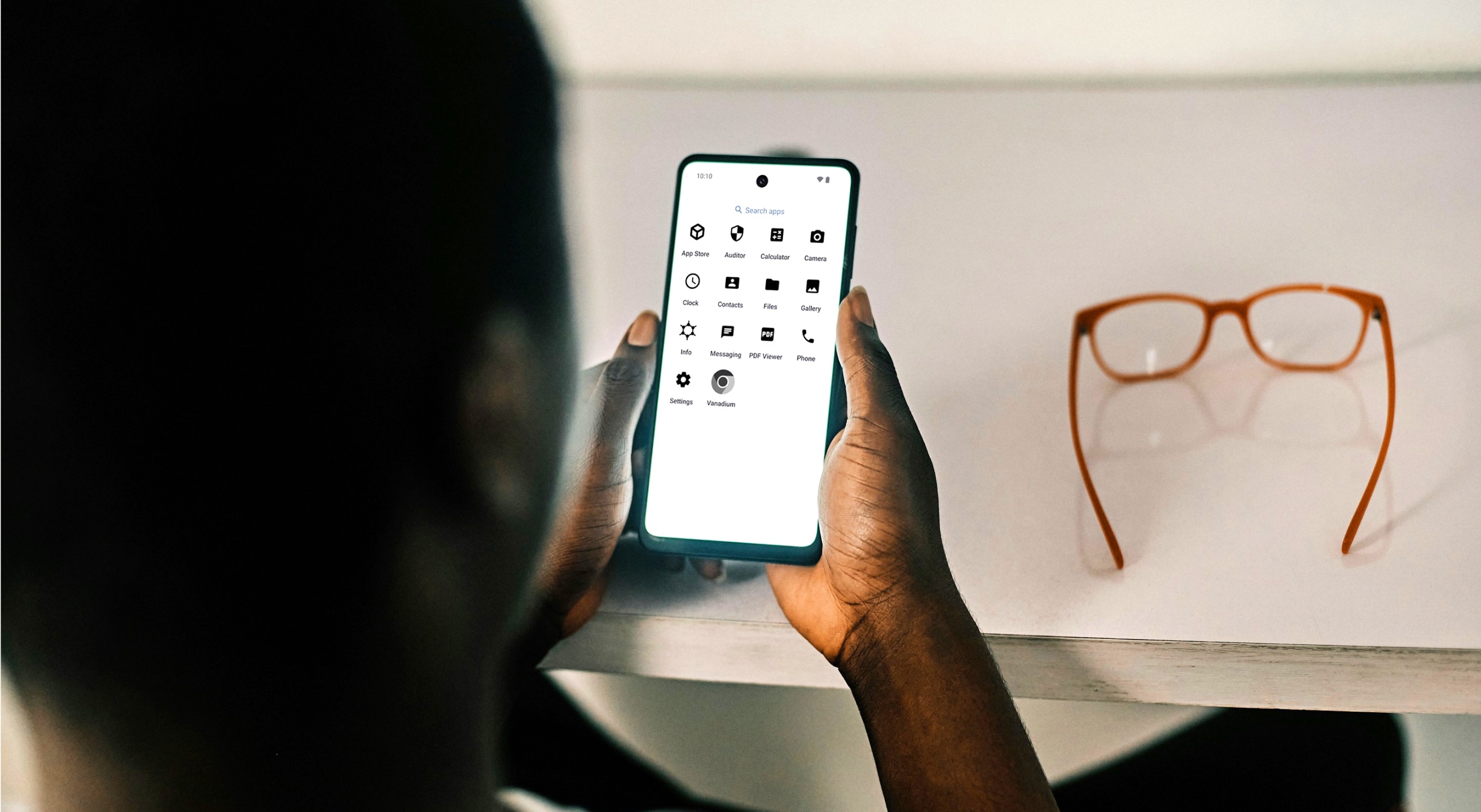
As an alternative Android operating system, GrapheneOS isn’t officially pre-installed on any devices. While you can buy a GrapheneOS-ready phone from a third-party vendor, doing so might expose you to unnecessary costs.
If you have a compatible phone, you can install GrapheneOS yourself in a few relatively straightforward steps. To help you make the installation as smooth as possible, this guide will answer the key questions:
- Which devices support GrapheneOS?
- Can you install GrapheneOS on a Samsung?
- What other prerequisites should you meet?
- How to install GrapheneOS on Pixel?
- Why should you pair it with a secure mobile carrier?
Can You Install GrapheneOS on Any Phone?
You can’t install GrapheneOS on any device. It’s only available on a select few Google Pixel models with the necessary security hardware. The current list of supported devices includes:
- Pixel 6 / 6a / 6 Pro
- Pixel 7 / 7a / 7 Pro
- Pixel 8 / 8a / 8 Pro
- Pixel 9 / 9 Pro / 9 Pro XL / 9 Pro Fold
- Pixel 10 / 10 Pro / 10 Pro XL / 10 Pro Fold
- Pixel Fold
- Pixel Tablet
If you’re looking to find out how to install GrapheneOS on Android, first check whether your device is supported. You can’t install GrapheneOS on Samsung phones or other Android devices, despite the OS being Android’s security-focused counterpart.
While older models like the Pixel 3 and Pixel 4 series also support GrapheneOS, they’re considered end-of-life devices. At the time of this writing, they still receive extended support, but you won’t get access to all the features and should update to newer hardware for long-term support.
Note: Installing GrapheneOS won’t void your warranty on a Pixel device. Also, if you decide that GrapheneOS doesn’t suit you, you can always go back to your regular Android.
What Do You Need To Install GrapheneOS?
Installing GrapheneOS isn’t hard, but it’s not as simple as downloading and running a single file. The following table outlines the installation prerequisites besides a compatible Pixel phone:
Prerequisite | Overview |
Developer Options enabled | On your Pixel, go to Settings > About, and tap Build number seven times to unlock Developer Options. Then, go to System > Developer Options and enable OEM unlocking to ensure the bootloader can be unlocked. |
Computer with USB ports | You need a wired connection to install GrapheneOS. You can do so on any USB-enabled device with the following operating systems:
|
USB-C cable | Ideally, you’ll use the cable that came with your Pixel or another high-quality option that ensures a stable connection. |
Appropriate driver/software setup | If you’re installing GrapheneOS on a Pixel 4a (5G) or later, you don’t need specific drivers because Windows 10/11 includes a generic fastboot driver. For older versions, you might need a dedicated driver. |
Latest OS and firmware versions | While this isn’t necessary, you should update the phone’s stock OS and firmware for the best results. |
Bear in mind that you can’t install GrapheneOS without wiping your phone. GrapheneOS installation removes all existing user data on your device. That’s why you must back up your personal files and data beforehand. Once the process starts, your data will be unrecoverable, and losing all data is one of the main things that tends to go wrong when users are installing GrapheneOS.
Methods for Installing GrapheneOS
Depending on your skills and tech background, you can choose between two GrapheneOS installation options:
- WebUSB-based installer (web installer for short)
- Command-line installer (CLI)
Whether you should use the GrapheneOS web installer or the command line depends on your skill level with terminal tools. Even if you’re tech-savvy and know your way around command-line tools, the web installer is objectively simpler. As some users might still prefer CLI, we’ll break down both options.
1. How To Install GrapheneOS Using the Web Installer
The GrapheneOS web installer offers user-friendly guidance through the installation process.
To access the OS, you should first boot your Pixel into bootloader mode. You can do this by:
- Turning off your phone
- Pressing and holding the volume down + power button
Once you see a red triangle and “Fastboot Mode,” connect your Pixel to the computer via USB. You can also install GrapheneOS without a computer, but if you’re using another Android device, you need a high-quality USB-C cable.
Next, visit grapheneos.org/install/web in your browser. The supported browsers include:
- Google Chrome
- Microsoft Edge
- Chromium (outside Ubuntu)
- Vanadium
- Brave (Brave Shields needs to be disabled)
Make sure the browser is up to date, and don’t use Incognito or private browsing mode since they prevent the installer from having enough storage to complete the process.
Once that’s all set, visit the page, and it will automatically detect that you’re in bootloader mode; then you can start the GrapheneOS install process. Here are the steps to follow:
- Click Unlock bootloader on the web page (you can’t install GrapheneOS without unlocking the bootloader). To confirm the unlocking, use the volume keys to navigate to “Yes”, and then press the power button.
- Click Download release on the installer page and choose your device to download GrapheneOS factory images.
- Go back to the installer page and click Flash release. Monitor the status in the installer and wait for the process to finish.
- Click Lock bootloader in the installer to ensure maximum security.
- Press the power button to boot into GrapheneOS.
If you run into any issues during the process, don’t panic. Encountering errors like your device not being found isn’t a major issue, and you can troubleshoot them in several ways, such as:
- Using a different USB port or cable
- Checking if OEM unlocking is enabled
- Rebooting back into bootloader (using volume down + power)
2. Installing GrapheneOS Using CLI
While CLI GrapheneOS installation is more technical, the general steps are largely the same. The only difference is that you’ll use the command-line tools instead of a standard visual interface.
Specifically, you’ll first need the fastboot tool. On Windows, you can run fastboot-- version in the terminal to determine the current version, which should be at least 35.0.1.
On Arch Linux, you can install android-tools to obtain fastboot. If your OS doesn’t include a fastboot version you can use, you’ll need to obtain standalone releases of Platform-Tools. When you do so, follow these steps to install GrapheneOS:
- In the terminal/PowerShell, run fastboot flashing unlock to unlock the bootloader.
- Before downloading the factory images, first download the GrapheneOS public signing key by running curl -O https://releases.grapheneos.org/DEVICE_NAME-install-VERSION.zip
- Download factory images and their signature file:
- curl -O https://releases.grapheneos.org/DEVICE_NAME-install-VERSION.zip.sig and
- curl -O https://releases.grapheneos.org/DEVICE_NAME-install-VERSION.zip.sig
- Verify the factory images by running ssh-keygen -Y verify -f allowed_signers -I contact@grapheneos.org -n "factory images" -s DEVICE_NAME-install-VERSION.zip.sig < DEVICE_NAME-install-VERSION.zip
- If successful, you’ll see Good "factory images" signature for contact@grapheneos.org. Don’t proceed if you don’t see this confirmation as it may indicate a corrupted or tampered download.
- Use ssh-keygen with the signing key (allowed_signers file) to check the .sig file and verify the download.
- Unzip the factory images (tar xf DEVICE_NAME-install-VERSION.zip) and enter the directory, and then run:
- bash flash-all.sh on Linux or Max
- flash-all.bat on Windows
- Run fastboot flashing lock to lock the bootloader.
- Boot your phone by pressing the power button.
What To Do After Installing GrapheneOS
Once GrapheneOS is up and running, you can use its many security features to safeguard your data. Here are some of the first steps to take:
- Enable PIN scrambling: GrapheneOS lets you scramble the PIN layout to reduce the risk of shoulder-surfing attacks. You can find and enable this feature in the Device unlock section of the settings menu.
- Explore privacy toggles: With GrapheneOS, you can cut off the network and sensor access from specific apps. The related toggles are under Settings > Privacy, so customize app permissions as you see fit.
- Familiarize yourself with new apps: GrapheneOS comes with hardened apps that enhance overall security, such as the Vanadium browser and Auditor app for checking device integrity.
- Disable OEM unlocking: If you don’t expect to reinstall GrapheneOS anytime soon, go to Settings > System > Developer options to disable OEM unlocking and safeguard your device.
As capable as GrapheneOS might be, no operating system can fully protect you from a rising security concern—network attacks. Once you familiarize yourself with the software, you should consider taking another step toward complete protection by opting for a secure phone service.
Why You Should Pair GrapheneOS With a Secure Carrier
GrapheneOS can protect you to some extent if your carrier isn't secure, but it can’t compensate for weaknesses in the cellular protocols most carriers rely on.
Traditional telcos like AT&T and Verizon undermine the purpose of using secure cell phones by leaving major security gaps because they use outdated and easily exploitable protocols that capable hackers can breach with little effort; something they’ve done quite a few times.
Besides suffering dozens of individual data breaches, telcos fell victim to what is perhaps the most sophisticated attack to date: the Salt Typhoon. It targeted all broadband networks, exfiltrating countless sensitive data points.
Your phone’s OS cannot protect you from such attacks. It also cannot prevent carriers from collecting large amounts of sensitive data, which is sold to advertisers and other third parties.
Instead, you need a secure service that shields your data from malicious parties, commercial telcos, and even internal teams. If this sounds appealing, check out Cape.
Cape + GrapheneOS: A Powerful Security Combo
Cape is a privacy-first mobile service that keeps your connection and data safe from both common and advanced network attacks. It operates on a “Don’t trust us” policy, which means it doesn’t need (or want) any personal data.
The service collects only the minimum amount of data necessary to work, so you can sign up anonymously to ensure that information like your name, address, and SSN never leaves your device. When you do, Cape will use its advanced cryptography to protect your account. Here’s how:
- When you sign up, your device creates a private encryption key.
- The key is represented by a unique digital signature (a 24-word phrase) available only to you.
- Your account is locked with the private key, which stays on your device at all times.
A digital signature is required to make any significant account changes, such as number port-outs. There’s no human involvement, and only you can initiate such changes, which minimizes the risk of SIM swapping.
In addition to secure authentication, Cape offers robust security features.
Cape Makes Security the Standard: Here’s How
Cape is America’s privacy-first mobile carrier, providing premium, unlimited, and nationwide call, text, and data. Unlike other providers, our service is built from the ground up with privacy and security at its core.
Mainstream carriers track you and store your data, often without your consent. Cape takes a different path—we collect the absolute minimum amount of information to provide you with service.
Any information we do collect is retained for the minimum amount of time possible. Most carriers store call data records (CDRs) for years, sometimes indefinitely. Cape stores yours for just 24 hours, and we have a commitment to never sell your data.
Cape service includes security features that no other carrier offers:
- Minimal Data Collection: During onboarding, we don’t ask for your name, Social Security number, or address. We only collect what’s necessary to provide you with service, and we retain it for the minimum amount of time possible.
- Identifier Rotation: Every SIM card has an International Mobile Subscriber ID (IMSI), a unique identifier which your device uses to register with cellular networks. Most carriers assign a fixed IMSI that stays the same for the life of your account, making it easy for your carrier, advertisers, and bad actors to identify and track your device over time. Cape breaks that pattern by allowing subscribers to automatically rotate their IMSI every 24 hours, so you appear as a different subscriber every day, making it much more difficult for anyone to follow or track your movements.
- Secondary Numbers: Your phone number is a target for data brokers and scammers. Retailers, websites, apps—everyone is routinely asking you to share your number with them, which exposes you to a variety of risks. Many turn to VoIP numbers to use as secondary lines, which can be helpful, but cost extra, don’t work with 2FA, and aren’t encrypted. Cape provides subscribers with two free additional SMS/MMS lines that are middle-to-end encrypted. With secondary numbers, you can reserve your primary number for communicating with your close friends and family, and use the other for anything from shopping and signing up for discounts, to receiving secure OTPs.
- Disappearing Call Logs: Call and text records reveal a lot about you, from who your closest relationships are to when and where communication took place. With traditional carriers, your call and text metadata doesn’t just disappear; it’s retained, analyzed, and folded into a lasting customer profile. At Cape, we’re built to forget and delete these records after just one day.
- SIM Swap Protection: A SIM swap happens when an attacker convinces your carrier to transfer your number to their device, allowing them to receive your calls and texts, trigger password resets, and gain access to your accounts. Cape protects against SIM swaps by removing humans entirely from the loop. During sign-up, you receive a 24-word phrase that generates a private key tied to your number. This phrase is the only way to move your number to a new device or carrier. No one, not even Cape, can transfer your number without your phrase, giving you full control over your number.
- Network Lock: Traditional cellular networks were designed for interoperability, not security. Outdated and legacy network protocols like SS7 have vulnerabilities that allow attackers to hack in and track your location, intercept your calls and texts, and steal sensitive information. Cape’s Network Lock uses a proprietary signaling proxy to verify that your device’s physical location matches the network it’s trying to attach to. If anything looks suspicious, like a mismatched location, we block the connection.
- Encrypted Voicemail: Voicemails can reveal more than you think, from personal messages to authentication codes, yet most voicemail systems are outdated and unencrypted. Cape encrypts your voicemails so that only you can access them.
- Secure Global Roaming: While you’re traveling abroad, your phone connects to local telecom providers to provide you with connectivity. But not all networks are secure, and not all governments treat privacy the same. Cape routes your traffic through our U.S.-based mobile core. Our Secure Global Roaming gives you the convenience of international data roaming without exposing your identity or communications. You get up to 15GB per month of international roaming included in your plan.
These features are made possible because we’re a “Heavy” Mobile Virtual Network Operator (MVNO).
Other MVNOs (such as Mint Mobile, Cricket, etc.) simply ride on top of the mobile core, SIMs, and physical infrastructure of their underlying MNO partner. At Cape, we actually own our own mobile core and provision our own SIMs.
This gives us control over how accounts are authenticated, what data we do and don’t collect, how long we retain it for, as well as the ability to build proprietary features like Identifier Rotation. No other carrier on the market has this capability.
Reclaim Your Privacy: Switch to Cape Today
Ready to ditch traditional telcos and switch to a privacy-first mobile carrier? Visit cape.co/get-cape to sign up.
Thanks to our partnership with Proton, you can also take your privacy a step further and get Proton Unlimited or Proton VPN Plus for only $1 for the first six months.
How To Install GrapheneOS With Cape
To install GrapheneOS with Cape, you’ll need:
- A compatible Pixel phone
- Cape’s eSIM
- A device that can run the GrapheneOS Web Installer (laptop or computer)
Here are the condensed steps to follow from the owner profile:
- Go to Settings → Network & Internet → eSIM Support
- Enable eSIM management
- Download the Cape app—you have two options:
- Enable sandboxed Google Play Services and download the Play Store
- Download and install the Aurora App store on your device
- Proceed through the checkout flow to activate Cape
- Flash the OS by following the web installer steps
Note: Visit the dedicated Cape support page for detailed instructions or reach out via the Help Center for further assistance.
Once the installation is complete, you can enjoy the combined device-level privacy of GrapheneOS and the robust network protection provided by Cape.
How To Install Apps on GrapheneOS
One of the main benefits of GrapheneOS is the lack of pre-installed Google services. While this significantly improves privacy, it means you don’t get a readily available Play Store.
You can keep using normal apps after installing GrapheneOS, and most banking apps also work on Graphene OS.
For enhanced privacy, you can set up GrapheneOS Sandboxed Google Play via the “Apps” app included with the OS. All you need to do is follow the Graphene OS install Google Play services steps in the Apps app, and you can download apps the same way you would on a regular Android (minus the countless privacy issues).
If you don’t have a Google account or don’t wish to use one, you can get an alternative app store like the Aurora Store. Here’s how to install Aurora Store on GrapheneOS:
- Download it from the official Aurora OSS site or F-Droid
- Grant permission to install the app
- Open Aurora Store
- Choose Anonymous or Google login
- Go to Aurora Settings, and then select Installation
- Set the installer method to Session Installer
GrapheneOS allows app sideloading, so you don’t need to use a traditional store to get apps. You can install them directly from APK files, but download them from trusted sources to avoid malware and other security threats.
Share it