Mobile devices have made our lives easier, but they’ve also affected our privacy. A significant concern nowadays is app tracking. While useful to a degree, this activity “feeds” on your information and shares it with third parties, some of which may abuse it for cyberattacks. Luckily, you can get more control over app tracking and prevent companies from monitoring your online behavior and activity regardless of the mobile operating system (OS) you’re using.
In this guide, we’ll show you how to disable app tracking on iPhone and Android devices to protect your privacy and limit unwanted data collection. We’ll also discuss the implications of turning off this feature and explore other methods for preserving your online privacy.
What Is App Tracking?
App tracking involves collecting user and device data from apps. This data can include your:
- Personal identifiers (name, email address, phone number, etc.)
- Location
- Online activity
- App usage
- Content interactions
- Purchase history
Apps share this information with third parties for various purposes, from targeted advertising to monitoring ad effectiveness. This may not seem like an issue at first; after all, using a mobile device nowadays inevitably involves sharing some personal data. If you dig a little deeper, you’ll find that the scope of app tracking goes beyond what you might have realized:
- Apps often track your data even when you’re not actively using them.
- Your data can be sold to data brokers and other companies.
- Tech giants like Google, Facebook, and Amazon can track you even if you’re not using their apps.
Why Would You Want To Disable App Tracking on iOS and Android?
Although it’s common, app tracking represents a potentially harmful practice to users. Below are the key reasons why you may want to stop apps from tracking your data and activity:
Key Reason | Explanation |
Protecting privacy | Companies can create entire profiles containing a wide range of your information and share them with third parties, directly jeopardizing your privacy. Disabling app tracking helps you regain control over your data. |
Improving security | The data that apps collect through tracking could end up in the hands of hackers or cyberattackers, compromising your and your device’s security. By turning off app tracking, you minimize the risk of malicious actors accessing your information. |
Minimizing exposure to targeted ads | Personalized ads may deliver information you’re interested in, but they can trigger ad fatigue and annoyance. By preventing apps from collecting your info, you effectively reduce the number of targeted ads you’ll see. |
Improving device performance | Tracking activities often occur in the background, and disabling them can optimize your device’s performance and battery. |
How To Remove App Tracking on an iPhone
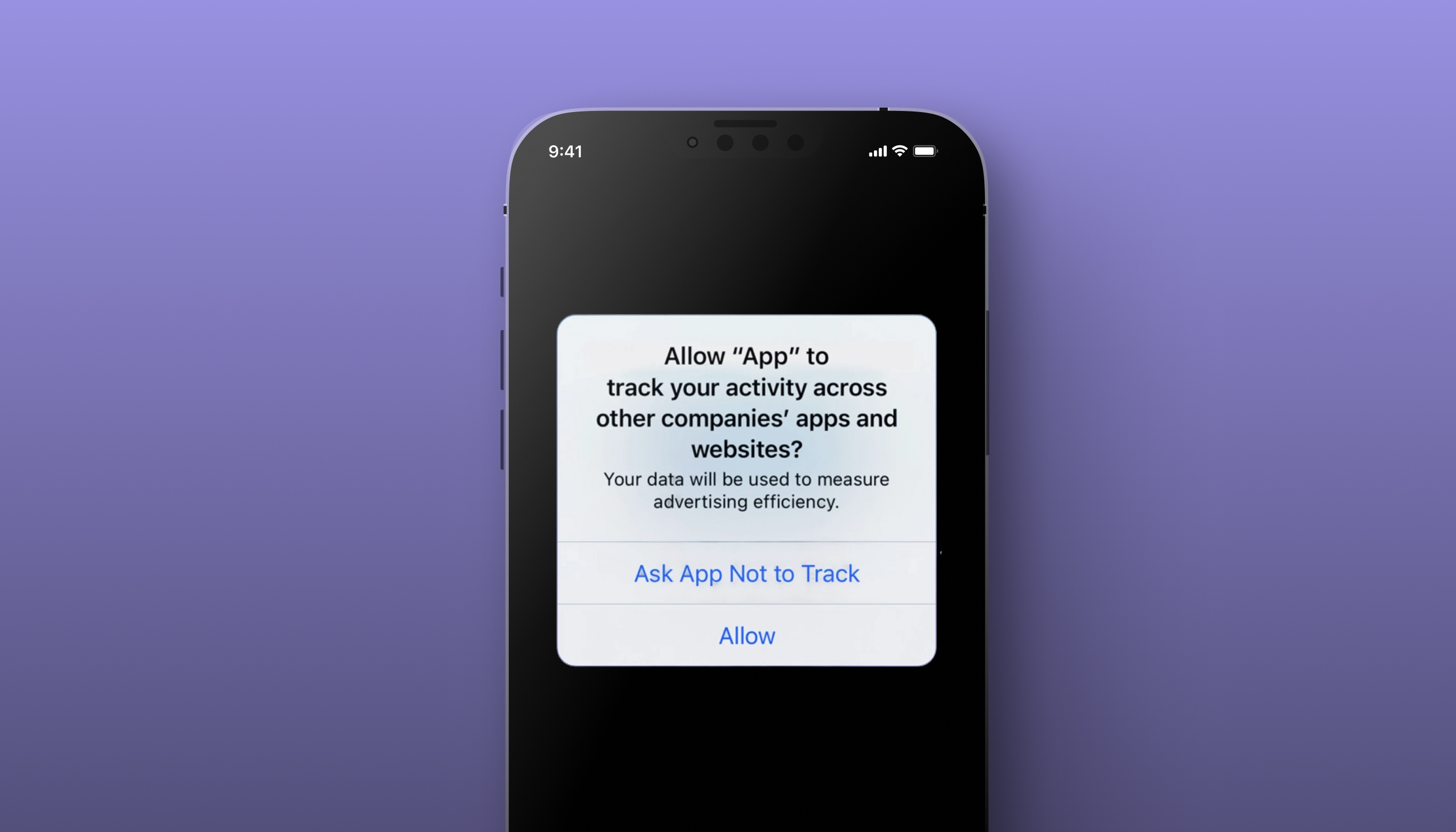
Thanks to the AppTrackingTransparency framework, which Apple introduced in iOS 14.5 and higher, all apps require your permission to track you or your device across websites or apps owned by other companies. Your initial choice doesn’t have to be final as you can easily change your settings in a few steps:
- Open Settings
- Go to Privacy & Security and tap Tracking
You’ll see a list of all apps that have requested and received your permission to track you and your device. Disable permission for specific or all apps on the list for maximum privacy protection.
Apple also allows you to stop all apps from asking permission to track you, and this is especially convenient if you want to ensure you don’t grant permissions by accident. You can do so by turning off Allow Apps to Request to Track at the top of the screen. Note that disabling this option doesn’t affect the apps to which you’ve given tracking permissions in the past; you’ll still have to disable these permissions if you don’t want them tracking you anymore.
Verify It Worked: Use Apple's App Privacy Report
Apple's built-in App Privacy Report shows a seven-day log of which apps accessed location, camera, microphone, contacts, photos, and the network domains they contacted.
Here’s how you can access it:
- Go to Settings
- Tap Privacy & Security
- Tap App Privacy Report
- Turn on App Privacy Report if it’s not already enabled
- Review the data access and network activity logs for each app
How To Disable App Tracking on an Android
Unlike iPhones, Android devices don’t offer system-wide app tracking settings, so disabling this feature isn’t as straightforward, but it’s possible. Here’s what you’ll need to do:
- Open the Menu and go to Settings
- Scroll down and tap Apps
- Choose a specific app for which you’d like to customize permissions
- Tap Permissions to review and manage permissions the app has requested. Depending on the app, focus on permissions such as Location, Contacts, Calendar, or Call logs
- Disable the desired permissions completely or ensure the app asks you every time it requires a specific permission to provide certain services
There’s another approach to disabling app tracking on Android devices. Instead of managing permissions on an app level, you can view and customize system-wide permission usage. Follow the steps below to do it:
- Launch the Menu and go to Settings
- Scroll down and open Security and privacy
- Under Privacy, choose Permissions used in the last 24 hours
- View all permissions in the last 24 hours or seven days. Choose a permission you’re interested in and see all apps that have it. Disable the permission for the desired apps. From this screen, you can choose to review all permissions for a specific app and control app tracking
Note that the steps may vary depending on your Android version and phone manufacturer. For example, you may see Application manager instead of Apps.
What Other Methods Can You Use To Enhance Your Privacy on an iPhone or Android?
Learning how to stop app tracking on an iPhone or Android is an important step toward enhanced privacy, but it’s not enough to keep your information safe. If you’d like to be more proactive about your privacy, here are six other ways to prevent unwanted tracking and improve privacy and security:
- Uninstall apps you don’t use
- Avoid clicking on suspicious links and ads
- Enable automatic app updates
- Keep your device updated
- Reset or disable your mobile advertising ID
- Change your mobile carrier
Uninstall Apps You Don’t Use
Having enough space on your phone doesn’t mean you should hold on to apps you never use. Besides taking up space, these apps present potential security vulnerabilities, especially if they haven’t been updated for a while. Additionally, these apps could track your data and activity even if you’re not using them frequently or at all.
By uninstalling apps you don’t use, you effectively reduce the attack surface, enhance your device’s security, and improve its performance. Make it a habit to go through your device every few months and remove any apps you no longer benefit from. Set up period reminders for “seasonal device cleaning” to ensure you don’t skip the process.
Avoid Clicking on Suspicious Links and Ads
Besides tracking your data, apps can pose a security threat because they can contain malicious software (malware) or be designed to perform phishing attacks through malicious links and ads.
Danger stems from the fact that even apps that were once legitimate can display fake login pages and malicious links and ads. If an app you frequently use has suddenly sent you a suspicious notification or displayed an unusual ad, ignore it until you’ve confirmed the app is safe. You can do this by:
- Checking the developer’s website or the App Store/Google Play Store for updates on the app’s safety
- Browsing online forums to see if other users encountered the same issue
- Reaching out to the developer directly to ask them about the app’s safety
- Running a security software with a phishing or malware scanning feature to confirm your suspicions
Enable Automatic App Updates
App updates often contain fixes for glitches and bugs and critical security patches that address potential code vulnerabilities. If you fail to update your apps, hackers could leverage these vulnerabilities to access your device and collect your data.
To prevent this, enable automatic app updates on your device. If you’re an iPhone user, here’s how to do it:
- Open Settings and select Apps
- Tap App Store
- Locate the Automatic Downloads section and switch the toggle button next to App Updates
If you’re an Android user, follow the steps below to set up automatic app updates:
- Open Google Play and tap your profile picture in the top-right corner
- Go to Settings
- Tap Network preferences
- Select Auto-update apps and choose your preferred option. You can choose to update all apps over Wi-Fi or mobile data, update with a limited amount of mobile data, or update over Wi-Fi only
Keep Your Device Updated
If your device isn’t running on the latest version, it becomes more vulnerable to existing and emerging threats as it doesn’t incorporate the latest patches and fixes. Additionally, if you don’t update your device, you miss out on new features that could enhance the user experience.
Follow the steps below to enable automatic device updates for your iPhone:
- Go to Settings and select General
- Choose Software Update and tap Automatic Updates
- Switch the toggle next to iOS Updates and Security Responses & System Files
Android users can set up automatic device updates by following these steps:
- Launch Settings, scroll down, and tap Software update
- Select Auto download and choose when to automatically download software updates
Reset or Disable Your Mobile Advertising ID
Disabling app tracking prevents apps from requesting permission, but it does not erase the persistent advertising identifier (IDFA on iPhone, AAID on Android) that ad networks may already have tied to your device.
Resetting that identifier, or disabling it entirely on Android, breaks the chain and forces advertisers to start over. The exact steps differ between iOS and Android, and we cover both in our full guide to resetting your advertising ID.
Change Your Mobile Carrier
Your mobile carrier may pose a serious security and privacy threat. Most mobile carriers were built with interoperability as a priority, rather than security. They rely on legacy protocols that are easy to breach, and the recent record is alarming.
In March 2024, AT&T confirmed that data on roughly 73 million current and former customers, including Social Security numbers, had been published on the dark web. Later that year, the FBI and CISA confirmed that the China-linked Salt Typhoon campaign had compromised AT&T, Verizon, T-Mobile, and other major U.S. telecom providers, exfiltrating customer call records and even the systems carriers use to fulfill court-authorized wiretaps. No major U.S. carrier has been immune.
While security vulnerabilities seem to be an industry-wide challenge, some carriers are more reliable than others. To keep your data safe, consider switching to a privacy-focused carrier such as Cape. Cape offers enhanced security features and adheres to strict data collection, storage, and sharing policies to shield your mobile identity and sensitive information from malicious actors and security threats.
Cape Makes Security the Standard: Here’s How
Cape is America’s privacy-first mobile carrier, providing premium, unlimited, and nationwide call, text, and data. Unlike other providers, our service is built from the ground up with privacy and security at its core.
Mainstream carriers track you and store your data, often without your consent. Cape takes a different path—we collect the absolute minimum amount of information to provide you with service.
Any information we do collect is retained for the minimum amount of time possible. Most carriers store call data records (CDRs) for years, sometimes indefinitely. Cape stores yours for just 24 hours, and we have a commitment to never sell your data.
Cape service includes security features that no other carrier offers:
- Minimal Data Collection: During onboarding, we don’t ask for your name, Social Security number, or address. We only collect what’s necessary to provide you with service, and we retain it for the minimum amount of time possible.
- Identifier Rotation: Every SIM card has an International Mobile Subscriber ID (IMSI), a unique identifier which your device uses to register with cellular networks. Most carriers assign a fixed IMSI that stays the same for the life of your account, making it easy for your carrier, advertisers, and bad actors to identify and track your device over time. Cape breaks that pattern by allowing subscribers to automatically rotate their IMSI every 24 hours, so you appear as a different subscriber every day, making it much more difficult for anyone to follow or track your movements.
- Secondary Numbers: Your phone number is a target for data brokers and scammers. Retailers, websites, apps—everyone is routinely asking you to share your number with them, which exposes you to a variety of risks. Many turn to VoIP numbers to use as secondary lines, which can be helpful, but cost extra, don’t work with 2FA, and aren’t encrypted. Cape provides subscribers with two free additional SMS/MMS lines that are middle-to-end encrypted. With secondary numbers, you can reserve your primary number for communicating with your close friends and family, and use the other for anything from shopping and signing up for discounts, to receiving secure OTPs.
- Disappearing Call Logs: Call and text records reveal a lot about you, from who your closest relationships are to when and where communication took place. With traditional carriers, your call and text metadata doesn’t just disappear; it’s retained, analyzed, and folded into a lasting customer profile. At Cape, we’re built to forget and delete these records after just one day.
- SIM Swap Protection: A SIM swap happens when an attacker convinces your carrier to transfer your number to their device, allowing them to receive your calls and texts, trigger password resets, and gain access to your accounts. Cape protects against SIM swaps by removing humans entirely from the loop. During sign-up, you receive a 24-word phrase that generates a private key tied to your number. This phrase is the only way to move your number to a new device or carrier. No one, not even Cape, can transfer your number without your phrase, giving you full control over your number.
- Network Lock: Traditional cellular networks were designed for interoperability, not security. Outdated and legacy network protocols like SS7 have vulnerabilities that allow attackers to hack in and track your location, intercept your calls and texts, and steal sensitive information. Cape’s Network Lock uses a proprietary signaling proxy to verify that your device’s physical location matches the network it’s trying to attach to. If anything looks suspicious, like a mismatched location, we block the connection.
- Encrypted Voicemail: Voicemails can reveal more than you think, from personal messages to authentication codes, yet most voicemail systems are outdated and unencrypted. Cape encrypts your voicemails so that only you can access them.
- Secure Global Roaming: While you’re traveling abroad, your phone connects to local telecom providers to provide you with connectivity. But not all networks are secure, and not all governments treat privacy the same. Cape routes your traffic through our U.S.-based mobile core. Our Secure Global Roaming gives you the convenience of international data roaming without exposing your identity or communications. You get up to 15GB per month of international roaming included in your plan.
These features are made possible because we’re a “Heavy” Mobile Virtual Network Operator (MVNO).
Other MVNOs (such as Mint Mobile, Cricket, etc.) simply ride on top of the mobile core, SIMs, and physical infrastructure of their underlying MNO partner. At Cape, we actually own our own mobile core and provision our own SIMs.
This gives us control over how accounts are authenticated, what data we do and don’t collect, how long we retain it for, as well as the ability to build proprietary features like Identifier Rotation. No other carrier on the market has this capability.
Reclaim Your Privacy: Switch to Cape Today
Ready to ditch traditional telcos and switch to a privacy-first mobile carrier? Visit cape.co/get-cape to sign up.
Thanks to our partnership with Proton, you can also take your privacy a step further and get Proton Unlimited or Proton VPN Plus for only $1 for the first six months.
Share it