
Your phone carries a lot—messages, photos, banking info, location history. But how exactly does it keep all that data secure?
In this post, we’ll break down the key security features built into today’s most popular phones—Apple, Samsung, and Google—and explain how both hardware and software work together to protect your privacy. We’ll also explore how your mobile carrier plays a role in your device’s overall security.
Key Hardware and Software Security Features
Many factors influence mobile security, but here, we’re focusing on the features that offer the strongest protection against major threats—especially those you can directly evaluate or control when choosing a device.
Hardware-Based Protections
1. Secure Enclaves and Dedicated Security Chips
A Secure Enclave, sometimes called a Trusted Execution Environment (TEE), is a dedicated hardware subsystem that acts like a vault inside your device. It stores sensitive data and operations from the rest of your phone’s main systems.
How it works: The Secure Enclave or vault functions as a “device within a device”. It has its own guards, namely a dedicated processor, memory, and secure storage area, all of which are physically and logically separated from the main operating environment. This means that even if the main OS is compromised, these chips make it extremely difficult to access protected data.
Apple: All iPhone 5s and onwards have a dedicated Secure Enclave. Apple’s Secure Enclave is embedded onto the main chip (known as “System on Chip” or SoC), but has its own secure boot process to make sure the device only loads trusted, signed firmware.
Samsung: The S20 series and later models have a dedicated security chip, called “Secure Processor” or “Knox Vault”. Unlike Apple’s SoC, Samsung’s Secure Processor is separated from the main chip. It works with Samsung Knox, a software-based security platform built into Samsung devices, to provide multi-layered protection.
Google: The Pixel 3, 4 and 5 models are equipped with the Titan M chip, while Pixel 6 and later models feature the Titan M2 chip, which offers improved security. Similar to the set-up in Samsung devices, the Titan chips are dedicated security processors that integrate with Android security features to offer multi-layered security.
Is one approach better?
Not necessarily. Separate chips may offer stronger physical isolation, but Apple’s SoC-based Secure Enclave is hardened through encryption and strict boot processes.
2. Biometric Sensors
Biometric authentication is an authentication process that uses sensors like cameras or fingerprint readers to verify user identities, like Face ID or Touch ID, providing fast and secure access to your phone.
How it works: When you enroll a biometric (like a fingerprint or face), your phone creates a mathematical template stored securely in the Secure Enclave or equivalent. Every time you unlock your phone, it matches your input to the template without exposing raw data.
Apple: Face ID (iPhone X and later) uses infrared cameras and a dot projector to map your face. Touch ID (used in SE models) captures fingerprint data.
Samsung: Galaxy S10 and up use ultrasonic fingerprint sensors embedded in the screen. Many Galaxy phones (e.g., S10 and later) support face recognition, but it generally relies on the front-facing camera without depth mapping. This makes it faster but less secure—Samsung even advises against using face unlock for sensitive applications like banking.
Google: Newer Pixel phones (Pixel 9+) use similar ultrasonic fingerprint sensors. The Pixel 4 had a secure 3D face unlock system using infrared sensors (similar to Face ID), but it was removed in later models. Pixel 7 and 8 reintroduced face unlock, but use the front camera only, making it less secure and limited to unlocking the device (not payments or apps).
3. Tamper Detection & Secure Boot
Tamper mechanisms and secure boot prevent unauthorized access and physical tampering on your devices, ensuring your phone only runs trusted software.
How it works:
- Tamper Detection Mechanisms: These include special coatings on security chips that are nearly impossible to remove. Some chips also contain a fine conductive mesh that monitors the integrity of the chip. If someone tries to tamper with the chip, the coating or mesh will be damaged, making the chip and device unusable.
- Secure Boot & Verified Boot: Embedded into a dedicated part of your phone’s chip, the Secure Boot ensures that only trusted, signed firmware is loaded. This process occurs even before the OS, apps, or user data are loaded. The Secure Boot cannot be disabled without physically altering the chip, a step that would trigger tamper detection.
All major brands include these protections, though exact implementations are not publicly disclosed for security reasons.
Software-Based Protections
1. OS Security Updates & Software Upgrades
If you own a smartphone, you’ve likely heard of “security patches” and “bug fixes”. You’ll probably have also downloaded software updates so your phone is on the latest version of iOS or Android. These are all part of the Operating System (OS) security features that help to block security threats, improve system stability, and ensure long-term device security. Keeping your device updated is one of the easiest and most effective ways to stay secure and protected against new threats.
How these protections work:
- Security Patches fix vulnerabilities and bugs in your device’s OS. Given the complexity of systems like iOS and Android, flaws and vulnerabilities in the code are unavoidable and constantly being discovered. Patches are therefore necessary to keep your phone secure.
- OS Upgrades introduce new security features and performance improvements.
Apple: Security patches are released when needed and in response to security vulnerabilities or bugs. If you’re an Apple user, enable automatic updates on your device to keep it updated with the latest protections and improvements.
Samsung: Depending on your device, Samsung offers up to seven years of system upgrades. The frequency of security patches also varies on device models. Check the frequency of security updates and length of support for your Samsung device here.
Google: According to various sources, Pixel devices typically receive monthly security patches. Pixel 8 and later phones will receive seven years of software and security updates, while Pixel 6 and 7 phones will receive five years of updates.
Tip: Always enable automatic updates to get the latest protections.
What about GrapheneOS? If you're seeking even more control over updates and security, GrapheneOS is an open-source, privacy-focused operating system for select Pixel devices. It offers hardened memory management, sandboxing, and frequent security patches with no reliance on Google services. While it requires technical know-how to install, it's a strong option for those who want deeper privacy and tighter OS-level security.
2. App Sandboxing & Permission Controls
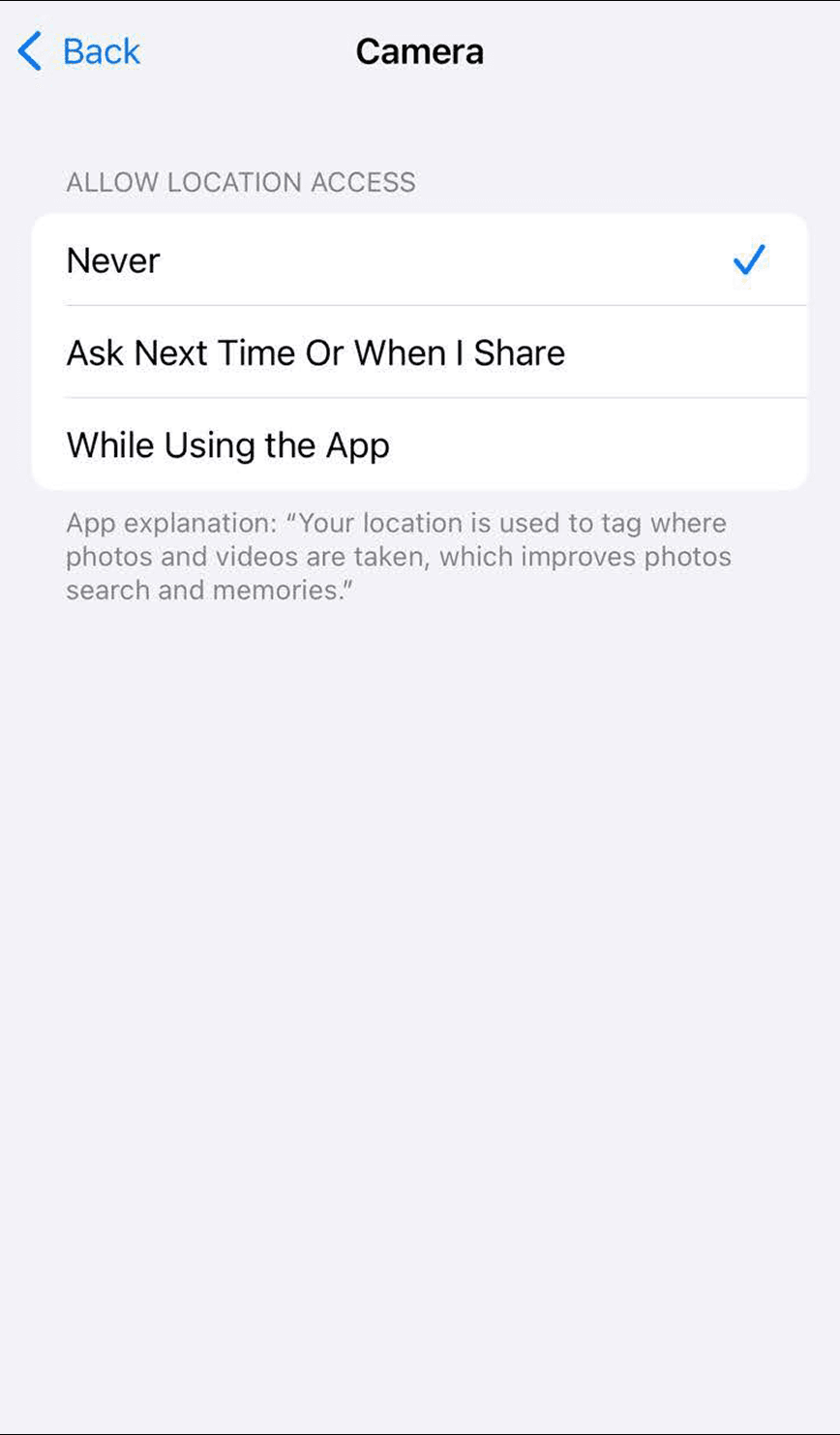
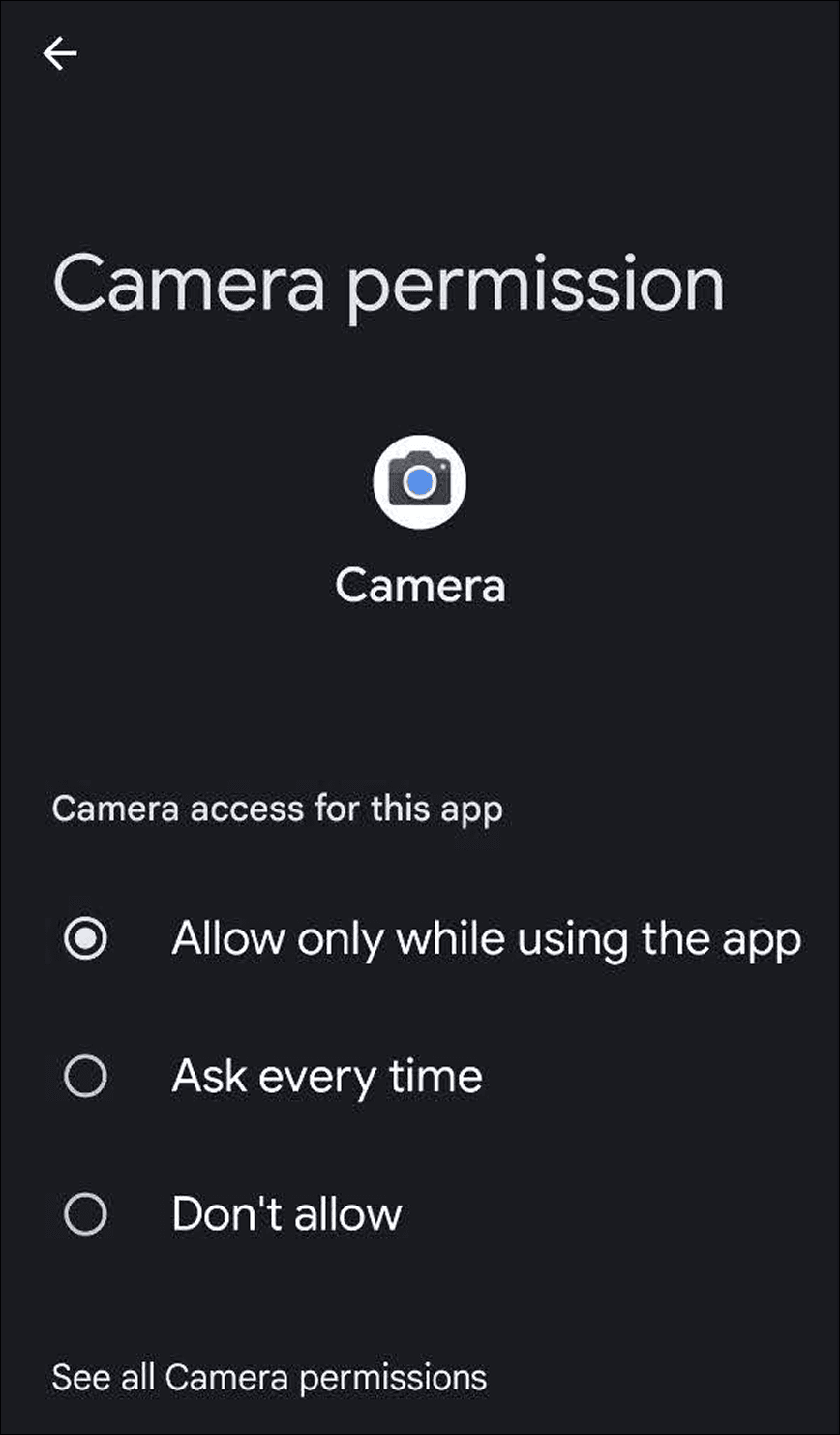
If you’ve just downloaded a new app, chances are you’ll get a pop-up asking if it can access your location data. This is a result of app sandboxing and permissions control, security measures that limit the data apps can access on your phone.
How these protections work:
- App Sandboxing: Imagine that your mobile phone is an apartment building. Apps are like tenants in that building, and each tenant has their own locked apartment. This is “app sandboxing”, where each app ‘lives’ in its own apartment, separated from other apps and system files.
- Permissions Control: Using the same apartment building analogy, one tenant cannot enter another person’s apartment unless permission is granted. Likewise, apps must request access to your location data or contacts, and other apps, such as the camera and microphone.
These security features ensure that sensitive data in one app cannot be accessed by another, potentially malicious app. When combined, app sandboxing and permissions control provide multi-layered protection for users.
Permissions controls are also available in both Apple and Android devices, though implementation varies between the two systems.
- Apple devices: iOS requires apps to request for your permission to access sensitive data or system features, such as location services, contacts, or the camera. Users can select different ‘levels’ of data sharing allowances.
- Android devices: Apps on Android must declare the permissions they need in their manifest files. Starting from Android 6.0 “Marshmallow”, users are prompted to grant permissions to specific features as needed.
Permissions Control on the iPhone 16 Pro (iOS) | Permissions Control on the Google Pixel 5 (Android) |
|---|---|
 |  |
3. Remote Lock & Anti-Theft Tools
If your phone is lost or stolen, these features help you locate it, remotely lock your device, or erase data.
How these protections work:
- Remote Lock: If your phone is lost or stolen, you’ll be able to lock it remotely using online dashboards like Apple’s ‘Find My iPhone’ or Google’s ‘Find My Device’. This prevents anyone else from unlocking or using your phone, even if they reset it.
- Location Tracking: If you lose your phone, it can send its last known location to a cloud service so you can track it. When a service like “Find My iPhone” or “Find My Device” is enabled:
- You can view your phone’s last recorded location on a map.
- If the phone is online, it will continue updating its location in real-time.
- Some devices can still be tracked even if offline. For example, Apple’s “Find My Network” allows tracking even when the phone is powered off, using nearby Apple devices.
If your phone is completely powered off and not part of a tracking network, location updates will not be possible. To make sure you can track your phone if it’s lost, enable location tracking features in your device settings.
- Factory Reset Protection (FRP)/Activation Lock: Even if a thief tries to reset a stolen phone to factory settings, they won’t be able to use it without the original owner’s Apple ID or Google account credentials.
- Remote Data Wipe: You can erase the data on your device if it’s lost or stolen. This feature is activated by setting up your respective "Find My" service.
Apple, Samsung, and Google devices are all equipped with remote lock, location tracking, FRP/Activation Lock, and remote data wipe features.
- Apple devices: These features are available via “Find My iPhone”, which is on by default. To allow location tracking even when the phone is powered off, enable “Find My Network” as well.
- Samsung and Google: These features are available via “Find My Mobile” (Samsung) and “Find My Device” (Google). Mobile devices from both brands also use Google’s FRP, which requires the user’s Google account credentials to set up the device after a reset. There may be additional proprietary protections on Samsung devices.
Why All This Matters
Understanding your phone’s built-in protections can help you make smarter choices about the devices you buy, the settings you enable, and how you use your phone every day.
Quick Tips:
DO:
- Secure your phone with biometrics or a pin
- Keep your software up to date
- Enable remote tracking and wiping tools
DON’T:
- Grant unnecessary app permissions
- Jailbreak or root your phone (you’ll disable key protections)
What About Your Mobile Carrier?
Even with strong device-level security, your carrier can still track your data.
Most mobile carriers (AT&T, Verizon, T-Mobile) have been caught collecting and selling customer data—like your location history or browsing activity—and have faced repeated data breaches due to weak network-level protections.
You can follow our opt-out guide to reduce some of this tracking, but the best way to fully protect yourself at the network level is to switch to a carrier built for privacy.
Cape: Privacy From the Ground Up
Cape is a secure mobile network that puts your privacy first. We don’t track your location, sell your data, or log your activity. Our infrastructure is designed to resist SIM swaps, data leaks, and surveillance.
If you're serious about privacy, your phone is only half the equation. Your carrier matters too.
Share it